How to Factory Reset Any Smart Home Device Safely in 2026
Last week, I spent forty-five minutes trying to get a used smart plug to show up in my app—until I realized the previous owner’s Wi-Fi credentials were still baked into the hardware. That stubborn little plug taught me one thing: knowing how to factory reset any smart home device safely isn't just troubleshooting trivia; it's the difference between a device that works and one that's a digital orphan. Here's everything I've learned from resetting dozens of devices, including the steps that prevent data leaks and save you from repeating my mistakes.
Why Factory Resetting Your Smart Home Device Is Sometimes Necessary
You don't need a dramatic reason to factory reset. Maybe you're selling a smart speaker on Facebook Marketplace and don't want the buyer controlling your thermostat. Maybe a smart bulb went offline after a firmware update, and you've tried everything short of a full wipe. Or perhaps you're handing down an old hub to a friend and need to scrub your account clean. These are all valid, low-drama scenarios.
Security is a quieter driver. When I upgraded my router last year, half my smart plugs refused to reconnect. A factory reset was the only way to clear their stuck network configs. Another time, a family member accidentally linked their Amazon account to my Echo Show—a reset and re-pair fixed the cross-account mess without needing to call support.
The key insight: a factory reset isn't admission of defeat. It's a deliberate tool that erases local settings, Wi-Fi passwords, and paired accounts. Cloud data—like routines or voice history—often survives unless you also remove the device from your app. That's why knowing the safe procedure matters more than the reset itself.
When I think about the most common uses, they boil down to three: troubleshooting persistent glitches, preparing for resale or gifting, and resolving account conflicts. Each demands the same careful prep to avoid losing irreplaceable settings or accidentally leaving a backdoor for the next user.
One surprising truth I've discovered: many people reset devices they don't actually need to. A simple power cycle or app reinstall can fix half the issues we blame on firmware. But when those fixes fail, a factory reset is the cleanest path—if done right.
The Universal Prep Steps Before Touching Any Reset Button
Before you press, hold, or poke any button, pause. I've bricked a $60 smart plug by skipping one step—here's the routine I now follow without fail.
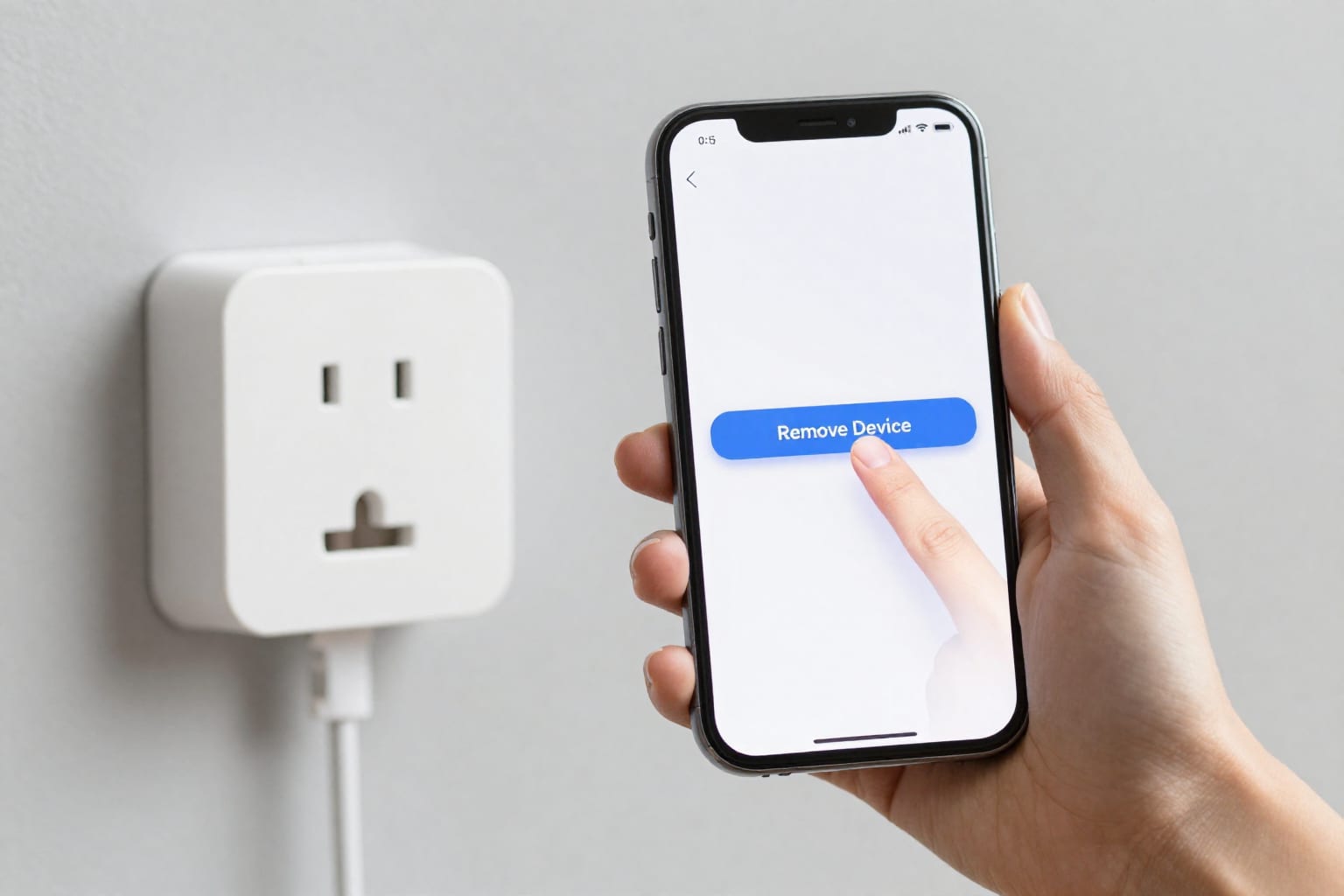
Step 1: Unlink the device from your cloud account. Open your smart home app (Alexa, Google Home, SmartThings, etc.), navigate to the device settings, and select "Remove Device" or "Unlink." This deactivates the cloud-side association. Without this, the device might remain listed in your account even after a factory reset, leading to ghost devices and pairing conflicts later.
Step 2: Back up any custom settings. If your device has custom schedules, scenes, or routines—like a smart thermostat with a complex week-long schedule—screenshot or export them. Most apps offer a "Backup" or "Export" option in the device settings. I once lost a meticulously crafted four-zone lighting schedule because I assumed the reset wouldn't touch it. It did.
Step 3: Note the device's MAC address or serial number. This is optional but smart. If you need to re-pair the device after reset, some apps ask for this info. Write it down or take a photo of the sticker on the device.
Step 4: Ensure stable power. A reset interrupted by a power outage can leave the device in a half-booted state. Plug into a surge protector or use a UPS if possible. For battery-powered sensors, make sure the battery isn't critically low.
Step 5: Have the original pairing instructions handy. Different generations of the same device sometimes use different reset sequences. Bookmark the manufacturer's support page or keep a PDF. I keep a folder on my phone labeled "Device Manuals" for exactly this reason.
These steps take five minutes but save you from the frustration of a device that won't re-pair or a cloud account that still thinks the device is active. I speak from experience: skipping Step 1 once left a smart plug tied to my old apartment's account, and the new tenant couldn't pair it until I drove back to unlink it remotely.
How to Factory Reset Smart Speakers and Displays (Echo, Nest, HomePod)
Smart speakers are the most common devices people reset, and each major brand has its own dance. Here's what works for the big three.
Amazon Echo (Dot, Show, Studio)
For most Echo models, press and hold the Action button (the one with a dot) for about 20 seconds until the light ring turns orange, then blue. The device will say "Resetting to factory defaults." For Echo Show devices, navigate to Settings > Device Options > Reset to Factory Defaults on the screen. I've tested this on a 3rd-gen Dot and a Show 5—both work reliably. If the button press doesn't work, try unplugging the device, holding the Action button, and plugging it back in while still holding the button. Release after the orange light appears.
Google Nest (Mini, Hub, Audio)
Google devices are fussier. On a Nest Mini, slide the microphone mute switch to the off position, then press and hold the center of the device for about 15 seconds. The LED will flash orange, then you'll hear a confirmation tone. On a Nest Hub, go to Settings > Device Information > Factory Reset on the screen. If the screen is unresponsive, a hardware reset is tricky—some models use a hidden pinhole button on the back. Check your model's support page. I once spent ten minutes trying to reset a first-gen Nest Hub before realizing the pinhole was under the stand.
Apple HomePod (and HomePod mini)
HomePods require a physical method. Unplug the HomePod, wait 10 seconds, plug it back in, then immediately press and hold the top of the device for at least 10 seconds. Siri will say "Your HomePod is about to reset." Keep holding until you hear three beeps. This method works for both full-size and mini models. If you can't get the beeps, try using the Home app on your iPhone: long-press the device, scroll to the bottom, and tap "Remove Accessory." This won't factory reset the hardware but will unlink it from your Apple ID, which is often sufficient for resale.
One nuance: after resetting a HomePod, the device remains tied to your Apple ID for 90 days unless you remove it from Find My. This is a common gotcha. Always check that the device no longer appears in your iCloud device list.
How to Factory Reset Smart Lights, Plugs, and Sensors
These small devices are the easiest to reset, but also the easiest to mess up because the procedures vary wildly by brand.
Smart bulbs (Philips Hue, LIFX, TP-Link Kasa). Most use a power cycle sequence. For example, a Philips Hue bulb: turn the light switch off for 2 seconds, on for 2 seconds, off for 2 seconds, on for 2 seconds, off for 2 seconds, then on. The bulb will pulse and then stay solid—this indicates it's in pairing mode. LIFX bulbs often require a similar sequence, but the timing is different: off for 5 seconds, on for 5 seconds, repeat three times. Write down the exact pattern for your brand. I keep a small note taped inside my light switch plate.
Smart plugs (Amazon Smart Plug, Wemo, TP-Link). Most have a physical reset button. On the Amazon Smart Plug, press and hold the button for 10 seconds until the light flashes orange. On a Wemo Mini, press and hold the side button until the LED blinks white rapidly. If there's no button, a power cycle sequence may work—unplug for 30 seconds, plug back in, and immediately press the button (if any).
Sensors (motion, door/window, temperature). Many have a small pinhole reset button. Use a paperclip to press and hold for 5–10 seconds. For battery-powered sensors, you might need to remove the battery, wait 30 seconds, and reinsert it. Some Aqara sensors require a three-time button press within 2 seconds. Always check the manual.
The biggest mistake I see: people forget that after resetting a light or plug, the device may remain listed in the app as "Offline." You must remove it from the app manually before re-pairing. Otherwise, the app will refuse to pair the "new" device because it thinks it's still linked.
How to Factory Reset Smart Hubs and Bridges (Hubitat, SmartThings, Hue Bridge)
Hubs are the brains of your smart home. Resetting one wipes all connected devices, scenes, and automations. This is a nuclear option—only do it if you're prepared to re-pair everything.
Samsung SmartThings Hub (v3). Press and hold the recessed reset button on the back for 10 seconds. The LED will flash red, then green. If that fails, try a 30-second power cycle. After reset, you'll need to re-add the hub in the SmartThings app using the QR code on the bottom. I've done this twice—it takes about 20 minutes to get all devices back online.
Hubitat Elevation. This one is more involved. Go to the web interface at http://hub.ip.address, log in, navigate to Settings > Hub Details > Factory Reset. Confirm, and wait for the hub to reboot. There's also a physical button on the back, but it's not a full reset—it only clears network settings. I recommend the web method for a complete wipe.
Philips Hue Bridge. Press and hold the push-link button on the top for 10 seconds. All four LEDs will flash, then the bridge will reboot. Afterward, you'll need to re-pair all bulbs and accessories. A tip: before resetting, remove the bridge from your Hue account in the app to avoid leaving orphaned cloud data.
One counter-intuitive insight: resetting a hub often doesn't delete your cloud account or subscription. That's a separate process. If you're selling a hub, make sure to also delete the hub from your account in the app after the physical reset.
What to Do After a Factory Reset: Reconnecting and Securing
The reset is only half the job. Here's the post-reset checklist I follow to avoid leaving a device insecure or unusable.
1. Update firmware immediately. Before re-pairing, check for firmware updates. Many devices ship with known vulnerabilities that are patched in later versions. Use the manufacturer's app or website to install updates before connecting to your network.
2. Change the default password (if applicable). Some devices (like older hubs) have a default admin password. Change it to a unique, strong password. I use a password manager to generate and store these.
3. Re-pair the device using the app. Follow the original setup process. The device should appear in pairing mode automatically. If not, consult the manual for the specific trigger.
4. Test all core functions. After pairing, test basic commands: turn on/off, check sensor readings, verify voice control. I once re-paired a smart plug but forgot to test it—turns out the reset had also cleared its energy monitoring calibration, and it reported double the actual usage.
5. Remove the device from your account if you're not keeping it. For resale or gifting, after resetting, go to your app and delete the device from your account. This ensures the cloud copy is gone, too. Then factory reset again (optional but thorough).
A practical takeaway: treat a factory reset like a fresh start. It's your chance to reassess whether you still need the device, whether its placement is optimal, and whether its security settings are up to date. I've found that after resetting a hub, I often eliminate devices I no longer use, streamlining my whole system.
One final thought: if you're resetting a device you plan to sell, include a note for the new owner with a link to the manual or support page. It's a small kindness that prevents them from calling you later with questions.